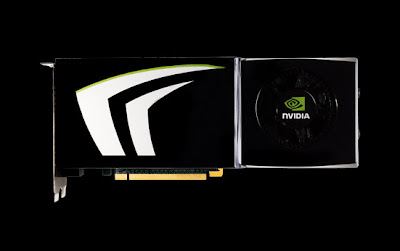
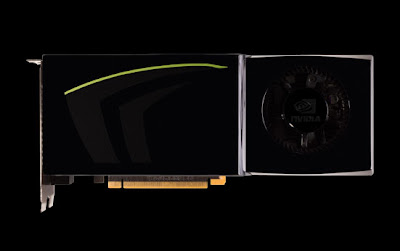
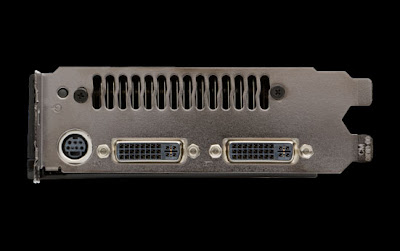
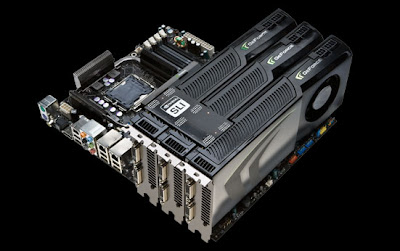
SLI Ready Extreme Gaming PC's

Monday, October 20, 2008

Restore Previously Open Folders After Shutdown

If you need to access lot of folders on your home computer or on the network regularly, then you can set them re-open automatically, when you will login, shutdown or restart your computer next time. There is no need to open regularly used folders manually, just configure the simple sitting, your computer will automatically reload all the previously opened windows.By default windows XP disables this option to reload automatically all the previously opened windows, when you login on, shutdown or restart your computer.Follow the given steps to configure your computer to reload previously opened folders automatically after shutdown.

* To edit this feature, you will need to be logged into your computer with administrative rights.
* First click on Start button then go to Control Panel.
* Open the “Appearance and Themes” option in control panel then click on Folder Options.
* A small windows dialog box will appear with the title “Folder options”, click on View tab.
* Under the Advanced setting section, scroll down to bottom and click the “Restore previous folder windows at logon” option and then click Ok button to save sitting.
* Now when you log off, restart or shutdown, your computer will automatically open the previously opened folders from the same location as before.

View Even Blocked Websites

Are you frustrated because you are not able to visit your favorite websites in your school or college or any place where some sites are blocked? There are two methods to access these sites:
Below are the list of various sites from which you can surf the blocked websites !

* http://kproxy.com
* http://backfox.com
* http://atunnel.com
* http://calculatepie.com
* http://www.stupidcensorship.com
* http://www.vmathpie.com
* http://www.xroxee.com
* http://mathtunnel.com
* http://www.pagemod.com

Sunday, October 5, 2008

NTFS vs. FAT File System

To NTFS or not to NTFS—that is the question. But unlike the deeper questions of life, this one isn't really all that hard to answer.
For most users running Windows XP, NTFS is the obvious choice. It's more powerful and offers security advantages not found in the other file systems. But let's go over the differences among the files systems so we're all clear about the choice. There are essentially three different file systems available in Windows XP: FAT16, short for File Allocation Table, FAT32, and NTFS, short for NT File System.
FAT16 The FAT16 file system was introduced way back with MS–DOS in 1981, and it's showing its age. It was designed originally to handle files on a floppy drive, and has had minor modifications over the years so it can handle hard disks, and even file names longer than the original limitation of 8.3 characters, but it's still the lowest common denominator. The biggest advantage of FAT16 is that it is compatible across a wide variety of operating systems, including Windows 95/98/Me, OS/2, Linux, and some versions of UNIX. The biggest problem of FAT16 is that it has a fixed maximum number of clusters per partition, so as hard disks get bigger and bigger, the size of each cluster has to get larger. In a 2–GB partition, each cluster is 32 kilobytes, meaning that even the smallest file on the partition will take up 32 KB of space. FAT16 also doesn't support compression, encryption, or advanced security using access control lists.
The FAT32 file system, originally introduced in Windows 95 Service Pack 2, is really just an extension of the original FAT16 file system that provides for a much larger number of clusters per partition. As such, it greatly improves the overall disk utilization when compared to a FAT16 file system. However, FAT32 shares all of the other limitations of FAT16, and adds an important additional limitation—many operating systems that can recognize FAT16 will not work with FAT32—most notably Windows NT, but also Linux and UNIX as well. Now this isn't a problem if you're running FAT32 on a Windows XP computer and sharing your drive out to other computers on your network—they don't need to know (and generally don't really care) what your underlying file system is.
The Advantages of NTFS The NTFS file system, introduced with first version of Windows NT, is a completely different file system from FAT. It provides for greatly increased security, file–by–file compression, quotas, and even encryption. It is the default file system for new installations of Windows XP, and if you're doing an upgrade from a previous version of Windows, you'll be asked if you want to convert your existing file systems to NTFS. Don't worry. If you've already upgraded to Windows XP and didn't do the conversion then, it's not a problem. You can convert FAT16 or FAT32 volumes to NTFS at any point. Just remember that you can't easily go back to FAT or FAT32 (without reformatting the drive or partition), not that I think you'll want to.
The NTFS file system is generally not compatible with other operating systems installed on the same computer, nor is it available when you've booted a computer from a floppy disk. For this reason, many system administrators, used to recommend that users format at least a small partition at the beginning of their main hard disk as FAT. This partition provided a place to store emergency recovery tools or special drivers needed for reinstallation, and was a mechanism for digging yourself out of the hole you'd just dug into. But with the enhanced recovery abilities built into Windows XP (more on that in a future column), I don't think it's necessary or desirable to create that initial FAT partition.
When to Use FAT or FAT32 If you're running more than one operating system on a single computer , you will definitely need to format some of your volumes as FAT. Any programs or data that need to be accessed by more than one operating system on that computer should be stored on a FAT16 or possibly FAT32 volume. But keep in mind that you have no security for data on a FAT16 or FAT32 volume—any one with access to the computer can read, change, or even delete any file that is stored on a FAT16 or FAT32 partition. In many cases, this is even possible over a network. So do not store sensitive files on drives or partitions formatted with FAT file systems.

Detect Invisible Users on Yahoo Messenger.......

In Yahoo Messenger, you can change your status to “Invisible to Everyone” which means everyone will see you as offline but in fact you’re online!The invisible feature is really great because sometimes you don’t want people to bug when you’re really busy. However, this useful feature is now pretty useless because there is a way on how to detect invisible users on Yahoo Messenger.

First Method : Doodle Method

  • Double Click on the user whose status you want to check. A message window will open.
  • Click IMVironment button, select See all IMVironments, select Yahoo! Tools or Interactive Fun, and click on Doodle.
  • The last step and the most important step. After loading the Doodle IMVironment, there will be two possibilities.
  • If the user is offline, the Doodle area will show “waiting for your friend to load Doodle” continuously.
  • If the user is online (in invisible mode), after few seconds (it can take up to one minute, depending on connection speed), you will get a blank page. So the user is online!
Interesting method : Websites
There are in fact many sites I found that is able to detect invisible users on Yahoo Messenger. But I’ll just list two in case one goes down, at least you still have the other as backup.
Third Method : Software
Buddy Spy offers you the ability to see if your friend is truly online or if they are invisible.

Monday, July 21, 2008

Computer running slow? Make it Fast........

Your computer may be running slow because of many errors like - Internet History not deleted, Cache not cleaned up, Errors in the Registry, and many more - But the number of errors = Number of Solutions.

Classic Solutions -

1) Defragment your drives - (When you use HardDisk, some of your files get fragmented into files, so your computer takes a little more time to access the files and run them).

2) Free Up Disk Space - Open My Computer>Right Click on the Hard Drive of which you want to free up disk space>Properties>Disk Cleanup.

3) Clean your History

4) Clean your cache - You can use CCleaner for this process - http://www.ccleaner.com/download

5) If your computer's specifications is not good, try to low the settings of your computer like - lowering the screen resolution, lowering the colour depth and using Microsoft Classic as your default theme.

6) As you use your hard drive, it can develop bad sectors. Bad sectors slow down hard disk performance and sometimes make data writing (such as file saving) difficult, or even impossible. The Error Checking Utility scans the hard drive for bad sectors, and scans for file system errors to see whether certain files or folders are misplaced.

If you use your computer daily, then you should run this once a week to prevent data loss.

To run Disk Error Checking Utility -
1) Open My Computer
2) Right Click on the Hard Drive you want to run the Utility for.
3) Then select Properties
4) Then select the Tools Tab
5) Click the Check Now button to start the utility.

Software Solutions -

1) Clean your registry - Errors in registry is inevitable - It will occur and No one can stop it. So, maybe you can use some good software's like -

* Windows Registry Repair - http://www.download3000.com/download_17377.html
* CCleaner - http://www.ccleaner.com/download

2) You can use Speed It Up - It cleans your Internet History, RAM Optimization, HardDisk Speedup, I have personally used it and I am happy with it - http://www.speeditup.org/

Which is the latest?

There are many software updates being released this day or the other. But which among them is the latest one? Well, you know that Internet Explorer is the latest one, but do you know which is the latest one? So, just comment on my post and I will give you the link to download the most latest version of the software for FREE!!!!! or you can write me on serials.cracks619@gmail.com

Download the latest, be Updated and Safe...............

Sunday, July 20, 2008

GTX 260 ....... THE BEGINNING OF GTX 200 series


  • 2nd Generation NVIDIA Unified Architecture: Second generation architecture delivers up to 50% more gaming performance over the first generation through 192 enhanced processing cores that provide incredible shading horsepower.
  • NVIDIA PhysX™-Ready1: GeForce GPU support for NVIDIA PhysX technology, enabling a totally new class of physical gaming interaction for a more dynamic and realistic experience with GeForce.
  • 3-way NVIDIA SLI® Technology2: Industry leading 3-way NVIDIA SLI technology offers amazing performance scaling by implementing 3-way AFR (Alternate Frame Rendering) for the world’s fastest gaming solution under Windows Vista with solid, state-of-the-art drivers.
  • NVIDIA CUDA™ Technology3: CUDA technology unlocks the power of the GPU’s processing cores to accelerate the most demanding system tasks – such as video encoding – delivering up to 7x performance over traditional CPUs.
  • NVIDIA PureVideo® HD Technology4 The combination of high-definition video decode acceleration and post-processing that delivers unprecedented picture clarity, smooth video, accurate color, and precise image scaling for movies and video.
  • NVIDIA HybridPower™ Technology5 Lets you switch from the GeForce GTX 260 graphics card to the motherboard GeForce GPU when running non graphically-intensive applications for a quiet, low power PC experience.

1 The GeForce GTX 260 GPU ships with hardware support for NVIDIA PhysX technology. NVIDIA PhysX drivers are required to experience in-game GPU PhysX acceleration. Refer to www.nvidia.com/PhysX for more information.
2 NVIDIA SLI-certified versions of GeForce PCI Express GPUs only. A GeForce GTX 260 GPU must be paired with another GeForce GTX 260 GPU (graphics card manufacturer can be different). SLI requires sufficient system cooling and a compatible power supply. Visit www.slizone.com for more information and a listing of SLI-Certified components.
3 Requires application support for CUDA technology.
4 Feature requires supported video software. Features may vary by product.
5 Requires NVIDIA HybridPower™-enabled motherboard.

GTX 280 ..... THE ULTIMATE MONSTER GAMING CARD!!!!


  • 2nd Generation NVIDIA Unified Architecture: Second generation architecture delivers up to 50% more gaming performance over the first generation through 240 enhanced processing cores that provide incredible shading horsepower.
  • NVIDIA PhysX™-Ready1: GeForce GPU support for NVIDIA PhysX technology, enabling a totally new class of physical gaming interaction for a more dynamic and realistic experience with GeForce.
  • 3-way NVIDIA SLI® Technology2: Industry leading 3-way NVIDIA SLI technology offers amazing performance scaling by implementing 3-way AFR (Alternate Frame Rendering) for the world’s fastest gaming solution under Windows Vista with solid, state-of-the-art drivers.

  • NVIDIA CUDA™ Technology3: CUDA technology unlocks the power of the GPU’s processing cores to accelerate the most demanding system tasks – such as video encoding – delivering up to 7x performance over traditional CPUs.
  • NVIDIA PureVideo® HD Technology4 The combination of high-definition video decode acceleration and post-processing that delivers unprecedented picture clarity, smooth video, accurate color, and precise image scaling for movies and video.
  • NVIDIA HybridPower™ Technology5 Lets you switch from the GeForce GTX 280 graphics card to the motherboard GeForce GPU when running non graphically-intensive applications for a quiet, low power PC experience.

1 The GeForce GTX 280 GPU ships with hardware support for NVIDIA PhysX technology. NVIDIA PhysX drivers are required to experience in-game GPU PhysX acceleration. Refer to www.nvidia.com/PhysX for more information.
2 NVIDIA SLI-certified versions of GeForce PCI Express GPUs only. A GeForce GTX 280 GPU must be paired with another GeForce GTX 280 GPU (graphics card manufacturer can be different). SLI requires sufficient system cooling and a compatible power supply. Visit www.slizone.com for more information and a listing of SLI-Certified components.
3 Requires application support for CUDA technology.
4 Feature requires supported video software. Features may vary by product.
5 Requires NVIDIA HybridPower™-enabled motherboard.

Sunday, July 13, 2008

CashCrate............... Get Paid to Complete Offers

Hello,

Cashcrate, it is a site that basically pays you to complete offers. This site is for the time-being beneficial for only US members. They pay you through Check. Check out the site and earn money simply - http://www.cashcrate.com

Happy Earning..................

myLOT...... the best and the easiest way to earn online

Hello,

Well, I would like to tell you that I have got a very good site to earn money - myLOT. What do they want from us? We basically have to write discussions, give comments, upload pictures and refer people. That's It. See, so how much you can earn with this incredible site. There are currently 136,004 members. The minimum payout is only $10. They pay you on Paypal and Moneybookers.
Once, you start using it, you will love it. http://www.myLot.com

Happy myLOTTING....................